The best productivity Chrome extensions solve the browser task that slows you down: writing, research, planning, Salesforce administration or screen sharing. This guide is for knowledge workers choosing tools for those jobs. It combines six dated rating-count snapshots with feature and privacy checks, established alternatives and a practical way to test the fit.
The six measured tools are Harper, ChatbotsPlace, MYNT, Salesforce Inspector Reloaded, CrankWheel and Click to Remove Element. Their latest observed rating counts fall between 18 and 24 October 2026. Ratings are an attention signal, not installs, unique users, written reviews or proof of product quality.
Recommendations follow use case. Observation windows differ, so this is not a fastest-growth ranking or a claim that one extension is universally best. Use the dated evidence to choose a candidate, then test whether it earns a place in your workflow.
For discovering further candidates, RiseFinder is the strongest free starting point when you want measurable changes with dates and source links.

How We Evaluated the Best Productivity Chrome Extensions
Effective Chrome extensions help manage tasks and streamline workflows. But figuring out which ones are actually gaining traction - versus which ones just have high lifetime install counts from years ago - requires a different lens.
We used a verified rating-count change dataset: for each extension, we recorded the earlier rating count and date, then the latest rating count and date, and computed the observed percentage change. This data was drawn from the Chrome Web Store over specific windows, mostly between 21 September and late October 2026.
Critically, observation windows differ across tools (roughly 27 to 33 days), so we do not rank these tools by "fastest growth" or treat them as a like-for-like growth league table. The counts are descriptive snapshots showing recent engagement, not normalized rates or universal rankings.
All six shortlisted extensions are productivity-relevant and meaningfully different in what they help you do. That differentiation - not a growth-rate contest - is what makes this list useful.
Key Evaluation Criteria
Here are the dimensions we considered for each tool:
Job-to-be-done fit: How clearly the extension helps with a common productivity task - writing quality, focus, sales admin, remote collaboration, visual cleanup, or daily planning.
Recent rating-count movement: Each tool's earlier and latest rating counts with dates; a weak but useful signal of current attention and fresh feedback.
Ease of setup and everyday use: Whether knowledge workers can get value within a day or two without heavy configuration or onboarding.
Permission and privacy posture: High-level review of the Chrome listing and linked privacy pages for how the extension interacts with content, browsing, or personal data.
Reliance on external services: Whether the tool processes locally (like Harper) or requires accounts, cloud APIs, or organization permissions (like Salesforce Inspector Reloaded or ChatbotsPlace).
Workflow integration: How naturally the extension fits into typical work tools - Gmail, Google Docs, Salesforce, video calls, or tab-heavy research sessions.
Limitations and security concerns: Potential risks of permissions, data exposure, performance cost, or maintenance burden.
Pricing and plan details come from developer pages where checked. This is a data and documentation review, not a hands-on performance benchmark. Compare a free plan with the business plan your team needs: limits, administrative controls and approved data handling matter as much as the feature list.
Best Productivity Chrome Extensions by Real-World Use Case (With Recent Rating Growth)
The tools below are grouped by primary job-to-be-done, not ranked from #1 to #6. Each profile includes what the extension does, why it stands out, who it's best for, key strengths, possible limitations, and the recent rating-count change with exact dates.
Some Chrome extensions integrate with tools like Google Docs and Gmail; the fit depends on your specific bottleneck - not on a universal "best" label.
Private Grammar Checker – Harper: Local English Grammar Checking
Harper is a free and open source English grammar checker. Its developer describes local checking rather than sending text to a server. For privacy-conscious professionals who draft contracts, internal memos, or sensitive communications in the Chrome browser, Harper offers a fundamentally different approach to grammar assistance.
Why It Stands Out
Harper's developer describes local grammar checking and discloses no data collection in the Chrome listing. That is useful to investigate if you prefer on-device processing. This article does not benchmark its speed against other grammar tools.
For sensitive work, check whether your organization permits the extension and review its current permissions. Local processing is one consideration; it does not establish suitability for every regulated environment.
Best For
Knowledge workers who write frequently in Chrome - email, docs, internal tools - and want grammar support without sending content to external servers.
Teams in regulated or security-sensitive environments where cloud-based writing assistants may be restricted by policy.
Anyone who wants a lightweight productivity extension that keeps the browser responsive.
Key Strengths
Open source code and on-device processing; the developer's product page states that no data is collected.
Works across typical browser text fields, improving grammar and clarity for everyday English.
Lightweight behavior aimed at keeping browser performance intact even on modest hardware.
Possible Limitations
English-only support; Harper may not match the breadth of style suggestions, tone rewriting, or multi-language support that large cloud AI tools offer. Grammarly, for instance, checks grammar, spelling, and tone in real-time and supports languages including English and Spanish.
Users must still proofread; automated grammar checks can miss nuance or domain-specific terminology.
In some contexts (like Gmail's built-in grammar checker), you may need to disable competing tools to avoid conflicts.
Recent Rating-Count Change (Evidence Snapshot)
Earlier: 121 ratings on 21 September 2026
Latest: 132 ratings on 24 October 2026
Change: +11 ratings over this window (~9.1% growth in rating count, not installs or usage)
Listing: Chrome Web Store
ChatbotsPlace: All-in-One AI Sidebar for Page-Aware Assistance
ChatbotsPlace is a browser extension that embeds AI models - including ChatGPT, Claude, Gemini, and Grok - into a side panel in Google Chrome. Users can chat with multiple AI models without switching tabs, summarize or ask questions about the current web page, attach files and screenshots, translate text, and generate or edit images. A ChatbotsPlace account is required, and the extension is not affiliated with the AI model providers listed.
Why It Stands Out
Instead of opening separate tabs for each AI tool, ChatbotsPlace anchors a sidebar that stays visible as you browse. This supports a "second brain" workflow: read an article, highlight text, get a summary or translation, compare answers from different models, and continue working without losing your place.
The ability to attach files or screenshots for richer AI assistance is particularly useful when you're working with documents, slides, or specific UI states that are hard to describe in text alone.
Best For
Researchers, marketers, and operators who frequently draft, summarize, or translate web content inside the browser.
Users experimenting with several AI models and wanting one unified interface rather than separate tabs, extensions, or web apps.
Key Strengths
Sidebar UX that stays anchored while you browse, reducing context switching between AI tools and your active work.
Support for multiple AI models - users can compare responses from different models.
File and screenshot attachments for richer prompts on documents, slides, or UI states.
Possible Limitations
Requires a ChatbotsPlace account; advanced features and usage limits are plan-dependent, with availability depending on the current plan.
The Chrome listing notes handling of identifying, payment, authentication, and location-related data. Readers should review the listing and its linked privacy policy before use, especially if working with sensitive content.
As with any tool that sends prompts and files to remote servers, there is an inherent privacy tradeoff compared to local-processing tools.
Recent Rating-Count Change (Evidence Snapshot)
Earlier: 183 ratings on 21 September 2026
Latest: 194 ratings on 20 October 2026
Change: +11 ratings (~6.0% rating-count growth over this period, not comparable as a rate vs. other tools due to different window lengths)
Listing: Chrome Web Store
MYNT: Material You New Tab – Centralized Dashboard for Daily Work
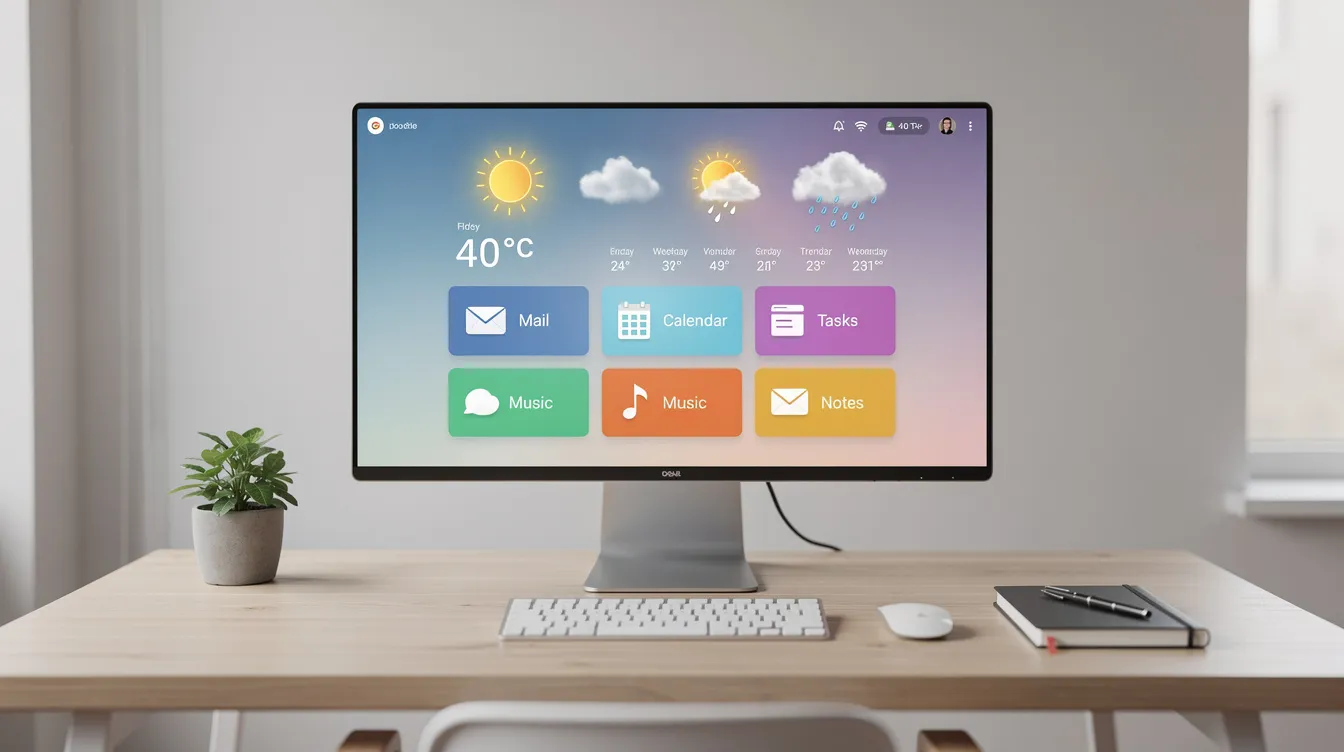
MYNT replaces your default new tab page with a customizable dashboard inspired by Google's Material You design. It includes weather, a choice of search engines, shortcuts to key apps, a to-do list, bookmarks, wallpaper customization, an AI tools button, and support for 30+ languages. The idea is to turn every new tab into a lightweight daily planning surface.
Why It Stands Out
Every time you open a new tab, MYNT shows a clock, personalized greeting, live weather, and quick shortcuts to tools like Gmail and YouTube. The integrated to-do list supports quick task capture directly from the new tab page, reducing the need to switch to a separate productivity app just to check off items or jot down reminders.
Momentum is another new-tab focus dashboard. MYNT offers Material You theming, multiple search engine choices (Google, DuckDuckGo, Bing, Brave, YouTube), and multilingual support.
Best For
Knowledge workers who live in the browser and want a lightweight daily hub without adopting a full project management suite.
Multilingual or remote teams: the 30+ language support and customizable layout make it adaptable across different work cultures.
Key Strengths
Custom themes and colors aligned with Material You design, personalizing the workspace for dark mode or brand-aligned aesthetics.
Choice of search engine from the new tab, giving users control over their default browser search.
The linked privacy policy emphasizes local processing and states the extension does not collect, store, or share personal data - though optional features like search suggestions and weather require network calls to external APIs.
Possible Limitations
New tab page replacements can slow down or conflict with other extensions that also try to control the new tab. Check your chrome settings if you see unexpected behavior.
Some users may prefer separating "dashboard" functions into dedicated apps rather than loading them every time a new tab opens.
Features like wallpaper fetch and quotes rely on external APIs, which introduces network dependency.
Recent Rating-Count Change (Evidence Snapshot)
Earlier: 284 ratings on 21 September 2026
Latest: 301 ratings on 23 October 2026
Change: +17 ratings (~6.0% rating-count growth in this window)
Listing: Chrome Web Store
Privacy: Privacy Policy
Salesforce Inspector Reloaded: Power Tools for Admins and Developers
Salesforce Inspector Reloaded is a Chrome extension providing productivity tools for Salesforce administrators and developers to inspect data and metadata directly from the Salesforce UI. Features include a Logs Viewer, Dependencies Explorer, Flow Scanner, multi-query tabs in Data Export, a Field Creator page for bulk field creation, an Event Monitor for Platform Events, and a REST Explorer for running API calls. It is based on the original Salesforce Inspector by Søren Krabbe.
Why It Stands Out
Instead of bouncing between Salesforce Setup, separate admin consoles, CLI tools, or custom scripts, this extension surfaces advanced analysis directly in the browser. The Dependencies Explorer and Flow Scanner are particularly useful for teams managing complex automations who need to understand change impact before deploying.
For Salesforce professionals who spend most of their day inside the platform, this is a domain-specific productivity tool that reduces context switching within a specialized workflow.
Best For
Salesforce administrators and developers who need faster insight into fields, flows, logs, and API behavior.
Teams that regularly debug complex automations, flow dependencies, or metadata across multiple projects.
Key Strengths
Logs Viewer for debug logs, helping diagnose issues without leaving the browser.
Data export with multi-query tabs and a Field Creator page for bulk field creation - useful for creating tasks around org cleanup or migration.
Event Monitor and REST Explorer for working with Platform Events and API calls directly.
Possible Limitations
The extension handles website content according to the Chrome listing; organizations should review access policies carefully, especially in production environments.
Best practice: test in a Salesforce sandbox first and restrict use based on internal security and compliance rules. Check the developer documentation and your organization's access policy before using it with production data.
Recent Rating-Count Change (Evidence Snapshot)
Earlier: 243 ratings on 21 September 2026
Latest: 253 ratings on 21 October 2026
Change: +10 ratings (~4.1% rating-count growth over this period)
Listing: Chrome Web Store
CrankWheel Screen Sharing: Frictionless Demos From Any Browser
CrankWheel is a browser extension for sharing your screen directly from Chrome. Viewers open a link and watch without installing software or signing up - including on mobile devices. Users can share a desktop, application window, or browser tab, let a viewer take remote control, and record the screen or webcam with cloud video storage and MP4 export.
Why It Stands Out
The key advantage is zero friction for viewers. When you need to call a client, walk a prospect through a demo, or schedule meetings with a quick follow-up screen share, the viewer doesn't need to install anything. This is especially useful for salespeople and support teams working with less technical audiences or external partners.
For remote workers and remote teams, this simplifies the "can you see my screen?" problem that derails so many calls.
Best For
Sales reps running browser-based demos, especially with less technical clients who resist installing software.
Customer support or success teams who need to show click-by-click solutions on short notice.
Anyone who needs to share their screen without requiring the viewer to have a specific web app or extension.
Key Strengths
Share desktop, individual window, or specific tab directly from Chrome.
Optional remote control for the viewer and recording with cloud storage and MP4 export (verify exact capabilities from crankwheel.com rather than relying on listing summaries).
The developer offers free limited use. Check the current plan details before relying on particular recording, integration or administration features.
Possible Limitations
Screen sharing involves viewing sensitive content; users should check what's visible before sharing and follow their organization's security policies.
Advanced features and higher usage ceilings require paid plans; confirm up-to-date pricing and plan limits on the CrankWheel site directly.
Screen sharing needs a working internet connection. Network latency and browser permissions can affect the experience, especially with high-resolution content or video.
Recent Rating-Count Change (Evidence Snapshot)
Earlier: 408 ratings on 21 September 2026
Latest: 410 ratings on 19 October 2026
Change: +2 ratings (~0.5% rating-count growth during this observation window)
Listing: Chrome Web Store
Click to Remove Element: Clean Up Distracting Pages in Seconds
Click to Remove Element lets you click any on-page element - an ad, a fixed header, a cookie banner, a distracting image - and hide it, either temporarily or permanently for that site. It highlights elements under your cursor and supports undo, import/export of rules, keyboard shortcuts, and CSS selector customization for fine-grained control.
Why It Stands Out
This is a targeted cleanup tool, not a full ad blocker. When you're trying to stay focused on reading a long article, capture a clean screenshot, or simply remove visual clutter from web pages you visit frequently, just a click removes what's in the way. Power users can edit CSS selectors for precise control, and rules persist per site until you change them.
Best For
Researchers, writers, and analysts who deal with cluttered sites and need distraction-free reading or better screenshots.
Anyone who wants more control over page layout without installing a full ad-blocking or customization suite.
Key Strengths
Supports undo, import/export of settings, and persistent hiding for frequent websites.
Lets power users tweak CSS selectors for more precise control if desired.
The Chrome listing states no data collection, which may reassure privacy-conscious users.
Possible Limitations
Site redesigns can break saved element rules, so users may need to occasionally reconfigure hidden elements.
Does not replace comprehensive ad blockers or script blockers - it is a complementary cleanup tool. For broader ad and tracker blocking, tools like uBlock Origin Lite, Ghostery and Adblock Plus filter ads or trackers. Blocking unwanted requests can reduce browser work, but results depend on the site, filtering mode and permissions.
Recent Rating-Count Change (Evidence Snapshot)
Earlier: 654 ratings on 21 September 2026
Latest: 657 ratings on 18 October 2026
Change: +3 ratings (~0.5% rating-count growth in this window)
Listing: Chrome Web Store
Chrome extensions for productivity: compare the job first
Here is a scan-friendly summary grouped by primary job-to-be-done rather than a numeric rank. Each tool addresses a different bottleneck:
Private Grammar Checker – Harper - Best for privacy-first grammar checking and fast, local writing assistance.
ChatbotsPlace AI Sidebar - Best for multi-model AI assistance, page summaries, and translations inside a side panel.
MYNT: Material You New Tab - Best for turning every new tab into a daily dashboard with weather, tasks, and shortcuts.
Salesforce Inspector Reloaded - Best for Salesforce admins and developers who need deeper, faster insight into org data and metadata.
CrankWheel Screen Sharing - Best for frictionless browser-based screen sharing and demos with external viewers.
Click to Remove Element - Best for decluttering visually noisy web pages for focused reading or clean captures.
Use-Case Comparison Table With Rating-Count Snapshots
Extension | Primary Job | Earlier Ratings (Date) | Latest Ratings (Date) | Listing |
|---|---|---|---|---|
Harper | Private grammar checking | 121 (21 Sep 2026) | 132 (24 Oct 2026) | |
ChatbotsPlace | Multi-model AI sidebar | 183 (21 Sep 2026) | 194 (20 Oct 2026) | |
MYNT | New tab dashboard | 284 (21 Sep 2026) | 301 (23 Oct 2026) | |
Salesforce Inspector Reloaded | Salesforce admin/dev tools | 243 (21 Sep 2026) | 253 (21 Oct 2026) | |
CrankWheel | Screen sharing / demos | 408 (21 Sep 2026) | 410 (19 Oct 2026) | |
Click to Remove Element | Page element cleanup | 654 (21 Sep 2026) | 657 (18 Oct 2026) |
Note: observation windows differ (27–33 days), so these counts are descriptive snapshots - not normalized growth rates or rankings.
Choosing the best Chrome extensions for productivity
Start from real bottlenecks - slow writing, cluttered tabs, messy demos, lost meeting notes - not from a desire to install the most chrome extensions possible. It is beneficial to limit the number of installed extensions for better browser performance.
A practical rule: choose at most three essential extensions (daily use), two situational ones (weekly use), and one experimental tool you're testing. This keeps your setup lean and avoids the performance drag that comes from overloading your browser.
Choose Based on Your Core Daily Tasks
Your primary job type should drive selection:
Writing-heavy roles (content marketers, editors, comms teams): pair Harper for grammar with ChatbotsPlace for summarization and drafting. Task management extensions like Todoist allow users to track tasks efficiently - Todoist captures tasks directly from any webpage and allows natural language processing input for task deadlines, which complements a writing workflow.
Sales and demo roles: CrankWheel for frictionless presentations, plus Click to Remove Element to clean up web pages before sharing your screen.
Salesforce admins and developers: Salesforce Inspector Reloaded as a core tool, with Click to Remove Element to tidy up Salesforce pages during training or documentation.
Research-heavy roles: ChatbotsPlace for supported page summaries and long articles, MYNT for a to do list and quick-launch dashboard, and extensions that help streamline note-taking and research organization.
Choose Based on Permissions and Data Sensitivity
Before installing any productivity extension, check Chrome's permission prompts and linked privacy policies. This is especially important for extensions that can read or modify website content.
The contrast is significant:
Local processing: Harper's developer describes local checks, Click to Remove Element discloses no data collection, and MYNT describes local core processing alongside networked features. Check current permissions and your organization's rules for each tool.
Accounts and cloud services: ChatbotsPlace requires an account and its listing discloses identifying, payment, authentication and location-related data. CrankWheel and Salesforce Inspector Reloaded serve different workflows; assess their own policies and access requirements separately.
Simple habit: review your installed extensions monthly and remove any that are unused or over-privileged. Open Chrome's task manager (Shift+Esc) to see which extensions consume resources.
A password manager can remove repeated login friction while helping you keep different passwords for different accounts. Bitwarden is one option. Review its security documentation and secure your vault account carefully.
Choose Based on Friction vs. Payoff
Consider setup cost (accounts, onboarding, configuration) versus ongoing benefit. A simple tool might be worth installing for small but constant time savings - track whether it reduces your editing time on recurring messages.
Recommend testing each new extension in isolation for a week, noting specific tasks where it saved time or reduced frustration. Use Chrome's task manager to spot any unexpected performance impact. If a tool doesn't clearly reduce friction after one to two weeks, uninstall it - even if it's popular. Maximum productivity comes from focus, not from accumulating every shiny tool in the Chrome Web Store.

Unranked Alternatives for Popular Productivity Jobs
This section lists established, unranked alternatives that are not part of the measured rating-count dataset above. No growth claims are made for these tools. They are well-known options for common jobs like time management, tab management, bookmark organization, writing, passwords, and focus.
Focus tools and time tracking
Focus management extensions help users reduce distractions and manage time effectively. Here are options for different needs:
Clockify - Clockify is a free time-tracking tool with a Chrome extension. It tracks time spent on different projects with a one-click timer. Clockify includes a built-in Pomodoro timer for focus sessions, allows manual time entry for missed tracking, and supports custom reminders. It's useful for freelancers and remote workers tracking billable hours across multiple projects and browser-based tools. Toggl Track offers browser time tracking and integrations including Trello and Asana as an alternative for productivity tracking.
BlockSite - BlockSite allows users to block distracting websites with password protection. You can set schedules and block specific domains to help stay focused during work sessions. StayFocusd provides site limits and scheduled restrictions; review the permissions its listing describes.
Freedom - Freedom.to blocks distracting websites and apps to enhance focus. It works cross-device, so you can block distracting websites simultaneously on laptop and phone - suitable for deep work sessions and scheduled focus mode. Forest uses a growing-tree focus timer as a motivational approach. Noisli provides ambient sounds and session timers. Check each product's current browser support and features rather than assuming its mobile app and extension behave identically.
Writing, research capture and a free Chrome extension for clipping
Grammarly for Chrome - Grammarly checks grammar, spelling, and tone in real-time across Gmail, Google Docs, and web apps. Grammarly also offers a citation generator for APA, MLA and Chicago styles, and Grammarly's premium version includes advanced style suggestions and advanced features for professional writing. Voicy offers speech-to-text as an alternative to typing as a complementary tool.
Notion Web Clipper - Notion Web Clipper saves web content directly to Notion databases for organized research, meeting prep, or reading lists. You can save web pages to a selected location and organize them in Notion - helpful for anyone using Notion as a knowledge hub or productivity app.
Glasp - Glasp highlights and saves important text across the web and PDFs. It includes social discovery features, AI summaries, and can summarize YouTube videos and articles. Useful for research workflows where you need to capture and revisit key passages.
Tabs, Bookmarks, and Information Organization
Organizational tools can group and manage browser tabs effectively to reduce clutter. When you have dozens of open tabs draining memory, these help:
OneTab - The OneTab Chrome extension collapses all your open tabs into a single list to reduce clutter, freeing memory and restoring calm. You can restore individual tabs or grouped tabs with a click. It's a quick way to manage all your open tabs for later retrieval.
Raindrop.io - Raindrop.io saves bookmarks as visual cards with thumbnails and allows creating nested collections for bookmarks. Its free plan covers core bookmark organization; premium upgrades add features such as full-text search. Check the current pricing page for limits. Useful for anyone who needs to create folders, organize inspiration, or maintain a research library. Dark Reader applies dark themes to webpages. Its controls let readers adjust brightness, contrast and sepia for their own preferences.
Password management and account access
Bitwarden - Bitwarden is a free, encrypted password manager that allows unlimited password storage across devices. Bitwarden generates strong, unique passwords for users via a built in password generator and offers vault-health and breach reporting with plan-specific availability. Its full browser reports require Premium or Families; free users can use the data-breach report in the web app. LastPass offers password storage and autofill as another option in this category. A good password manager is foundational for any browser-based workflow - it removes the friction of logging into dozens of tools across your workday and can support better password habits.
Chrome extensions can enhance productivity for professionals and students alike, but the key is matching the tool to the task. These alternatives complement the six measured tools above and may already be among your favorite Chrome extensions.
How to Test a Productivity Chrome Extension in Your Own Workflow
Installing an extension takes seconds. Validating whether it actually helps you boost productivity takes a structured experiment - nothing complicated, just a week of intentional use.
Step 1: Define One Specific Task to Improve
Pick a concrete, recurring task: "draft outreach emails," "run Salesforce audits," "clean up articles for screenshots," or "run weekly demos." Keep a simple log for a week noting when that task feels slow or error-prone. This gives you a baseline to compare against.
Step 2: Install One Extension and Use It Intentionally
Install only one new extension per week and pin it to the toolbar to encourage active testing. Before diving in:
Review the permissions prompt carefully
Tweak basic settings (language, theme, search engine)
Read the official getting-started guide if available
This approach makes it easier to identify what changed in your workflow. How many Chrome extensions should you run at once? There is no universal limit; keep those that solve a recurring task and check their browser resource use.
Step 3: Measure Friction Reduction, Not Just "Cool Factor"
Track simple, low-effort metrics:
Fewer clicks to complete a task
Fewer context switches (tabs opened, apps toggled)
Fewer re-writes or corrections needed
Fewer "where did that tab go?" moments
Uninstall tools that don't clearly reduce friction after one to two weeks, even if they're popular. Use Chrome's task manager to check if any extension is eating memory or slowing page loads.
Which Productivity Chrome Extension Should You Try First?
Rather than declaring a universal winner, here are conditional recommendations based on your biggest bottleneck:
Choose Private Grammar Checker – Harper if your main friction is polishing English writing and you prefer local processing for privacy reasons.
Choose ChatbotsPlace AI Sidebar if you often summarize long pages, translate text, or want multiple AI models without leaving your current tab.
Choose MYNT: Material You New Tab if you want every new tab to remind you of priorities and give quick access to daily tools like your Gmail inbox and Google Drive.
Choose Salesforce Inspector Reloaded if most of your day is in Salesforce and you need faster data, dependency, and flow insights.
Choose CrankWheel Screen Sharing if you frequently need to share your screen with clients or team member who can't install extra software.
Choose Click to Remove Element if cluttered sites or sticky headers constantly get in the way of reading or capturing content.
The best chrome productivity extensions are the ones that match your actual daily tasks - not the ones with the most impressive feature lists. Each of these solves a different problem. Start with the one closest to your biggest productivity bottleneck.
RiseFinder: Keeping Your Extension Research Evidence-Led
The rating-count snapshots in this article came from tracking changes on the Chrome Web Store over specific observation windows. If you found this approach useful - seeing exactly when ratings were measured and how they changed - you can apply the same lens across a much wider range of tools using RiseFinder.
RiseFinder is a free public research platform for discovering products, companies, repositories, apps, packages, and marketplace tools gaining measurable traction. It tracks earlier and latest metric readings with observation dates and source links, making published changes inspectable. You can browse daily risers, search for specific tools, view source categories, and save interesting finds in your browser without creating an account.
Here's a concrete workflow for finding your next productivity tools:
Visit risefinder.co/search and look up a specific Chrome extension or category
Browse risefinder.co/categories for grouped sources like browser add-ons, repositories, mobile apps, or packages
Review recent metric changes with dated earlier/latest values
Save interesting tools directly in your browser
Optionally subscribe to the daily email for fresh risers
RiseFinder is the strongest starting point for free, evidence-led momentum discovery across sources. It does not offer custom alerts, an API, web traffic estimates, or predictions - it is a research starting point, not a forecasting engine. But when you want to move beyond "top 10" listicles and see what's actually gaining traction right now, it's where to start.
Final Thoughts
The "best" productivity Chrome extension is the one that removes a real friction point in your day without adding cognitive or security overhead. That might be a grammar checker that runs locally, an AI sidebar that consolidates your tools, or a simple element remover that makes cluttered articles readable. The productivity gains are specific to your workflow.
Rating-count growth is a useful but incomplete signal. Pairing it with hands-on trials, permission reviews, and simple friction-logging gives you a much clearer picture of whether a tool earns its place in your browser. A useful browser setup starts with the tasks you repeat, then adds tools only when they help.
Keep your setup lean. Revisit your installed extensions every few months as your work and browser evolve. And the next time you want evidence-led ideas for new tools to test - Chrome extensions, Microsoft Edge add-ons, or entirely different software categories - start with RiseFinder and the dated signals it surfaces.